Outlook Express Installation and Setup for Windows 95
Click the link to download Outlook Express
After you download and install Outlook Express, please follow these configuration instructions.
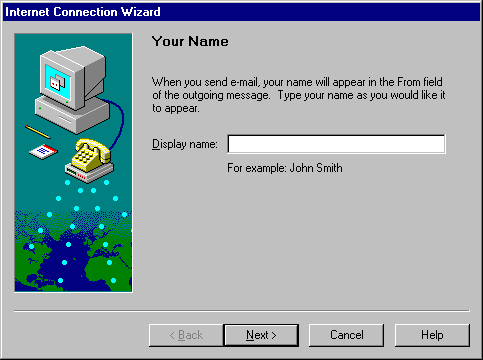
1. Enter your name on the first screen.
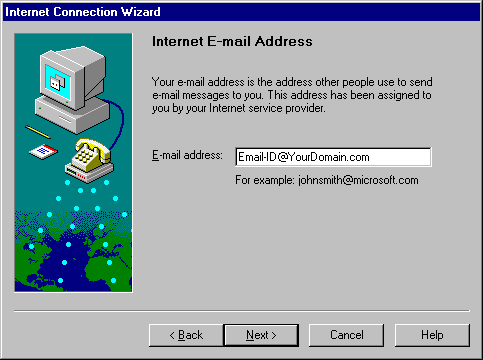
2. Enter your email address. The first part of you email address is your "Email-ID".
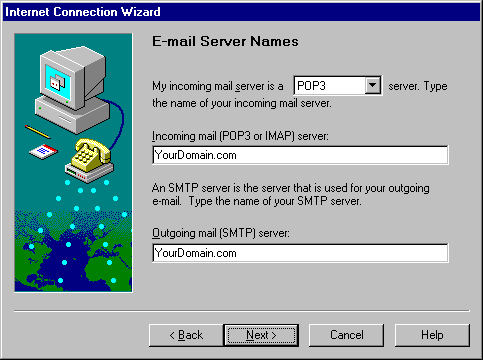
3. Use POP3 for the server type. "Incoming Mail server" and "Outgoing Mail server" should be YourDomain.com without the www ("YourDomain.com" is the website name that you registered)
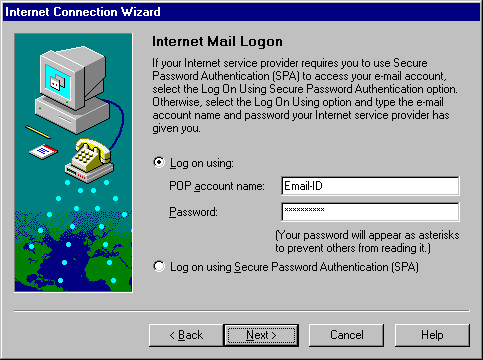
4. Enter your Email-ID only and your password for your email account.
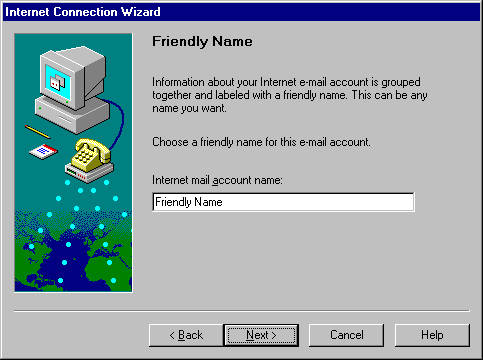
5. Enter a friendly name to remember your profile.
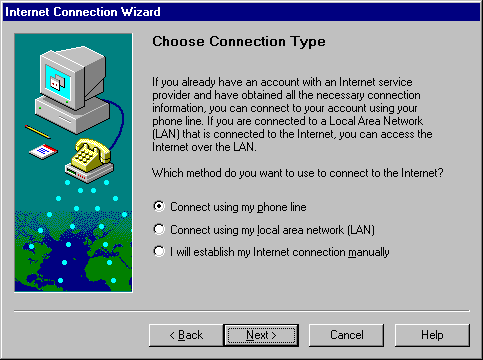
6. Choose a connection type. You can have Outlook Express dial the Internet for you to check your email or you can connect to the Internet a different way and then open Outlook Express to check your email by selecting the second option.
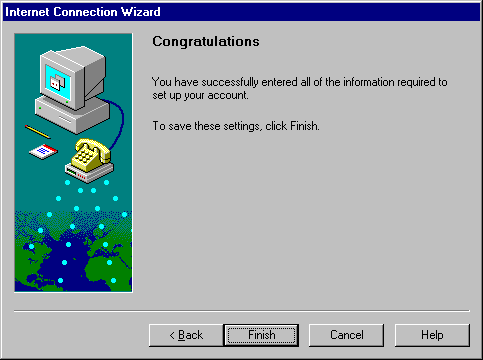
7. Press the finish button and your done. To check your email, start Outlook Express and press the "Send and Receive" Button on the toolbar.